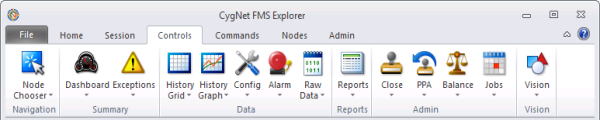
Use the Controls Menu to create or access available FMS controls to perform data analysis tasks efficiently using FMS Explorer.
You can create up to eight instances of each control. Multiple controls, of the same or varying type, can be used simultaneously to help identify and correct data quality issues. You can use the controls menu interface to quickly customize access to FMS Explorer controls in the manner that best suits your data analysis purposes.
See FMS ActiveX Controls for more information about using and configuring CygNet Measurement controls for use on CygNet Studio and CygNet Vision screens.
See FMS Scripting for more information about the scripting libraries available to perform CygNet Measurement control functions.
See FMS Explorer User Interface for more information about the user interface.
See FMS Security for information about configuring security access for FMS controls.
The FMS Explorer Controls menu includes the following types of controls, grouped by functionality.
The Node Chooser is the primary Navigation control. Use the Node Chooser control to select a Node through which to navigate and filter large volumes of data. A Chooser control is also embedded within each of the Summary controls, the Data controls, the Reports control, and the Admin controls (with the exception of the PPA control). You can use the choosers embedded within each of these controls to select a Node or Nodes for which to display data within the control.
The Summary controls include Dashboard and Exceptions. Use these controls to efficiently view large volumes of data and identify areas for further analysis.
The Data controls include History Grid, History Graph, Configuration, Alarm, and Raw Data. Use these controls to efficiently view, edit (in the History Grid, Configuration, and Alarm controls), and manage measurement data.
Use the Reports control to access and run a variety of measurement reports.
The Admin controls include Close, PPA, Balance, and Jobs. Use these controls to perform administrative tasks necessary to prepare and refine data for downstream consumption such as production accounting.
Use the Vision control to open CygNet Vision screens through FMS Explorer, in order to view additional information such as SCADA data simultaneously with your measurement data.

More:
 Using the Close Period Control
Using the Configuration Control
Using the History Graph Control
Using the History Grid Control
Using the Node Chooser Control
Using the Prior Period Adjustment Control
|
|
|

